
Example for the quavo ai trend guide
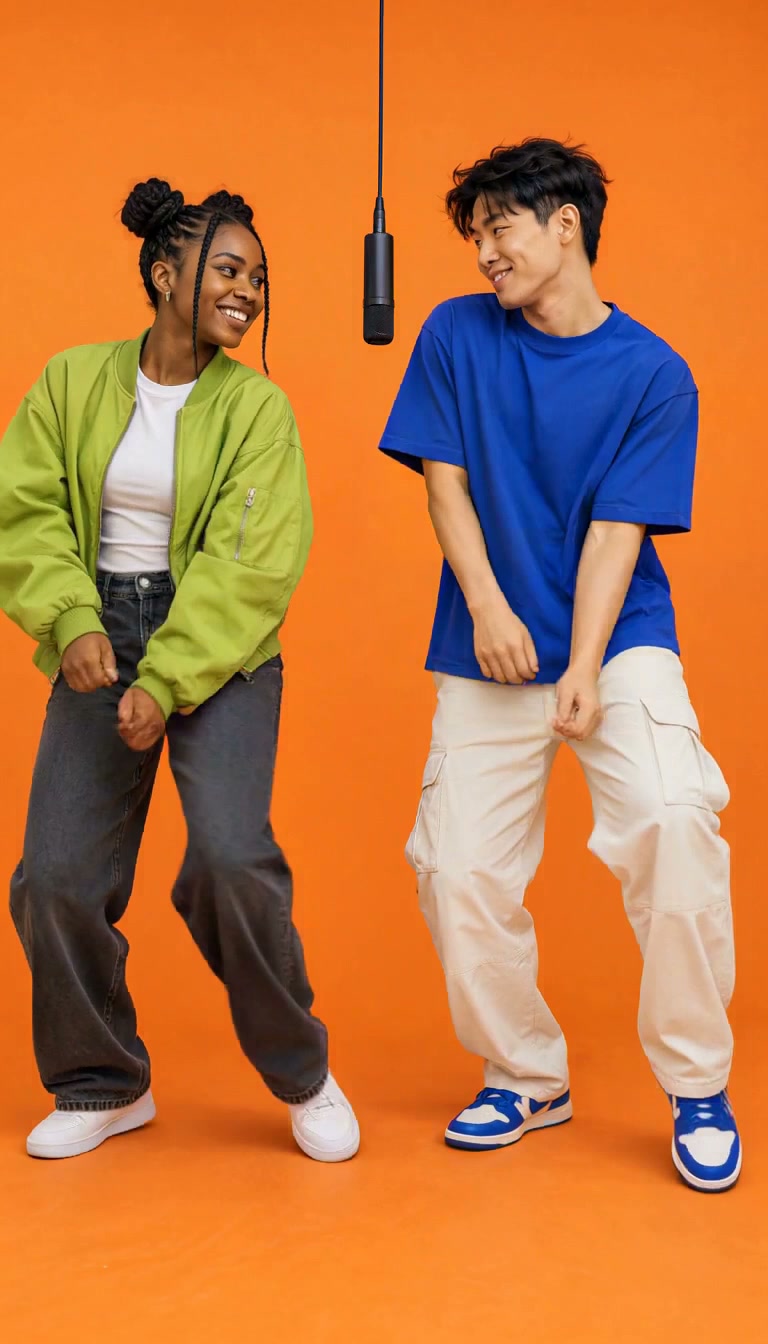
Friends dance
Two young adult friends in green and blue share light knee bounces, smiles and low hand gestures. Generated from one complete original scene image.
MiniMax H3 · 768 × 1344
Original ideas. Real video workflows.
A Quavo AI trend search often leads to a two-person booth scene associated with the Hotel Lobby performance. Use its broad visual setup to plan an original duo video with permitted portraits or fictional characters. This Quavo AI trend guide focuses on the composition and review process, with a working creator and documented samples.
No Quavo or Takeoff likeness, voice or performance is supplied by these presets. The sample casts are original and the actual generator is labeled.
Apply a permitted portrait or an original scene preset. Check the actual model, input mode and credit quote in the working creator before generating.
These original MiniMax H3 examples use different casts and one complete scene image each. They demonstrate generated booth movement; they are not a named competitor’s output or an exact music-video remake.
Examples for the quavo ai trend guide, generated independently by VidLoop.
Example for the quavo ai trend guide
Two young adult friends in green and blue share light knee bounces, smiles and low hand gestures. Generated from one complete original scene image.
MiniMax H3 · 768 × 1344
Example for the quavo ai trend guide
An original golden retriever and black cat sway together, then the cat raises a paw. Generated from one complete original illustrated scene image.
MiniMax H3 · 768 × 1344
Example for the quavo ai trend guide
An original robot and pink plush alien share a small dance and friendly waves. Generated from one complete original character scene image.
MiniMax H3 · 768 × 1344
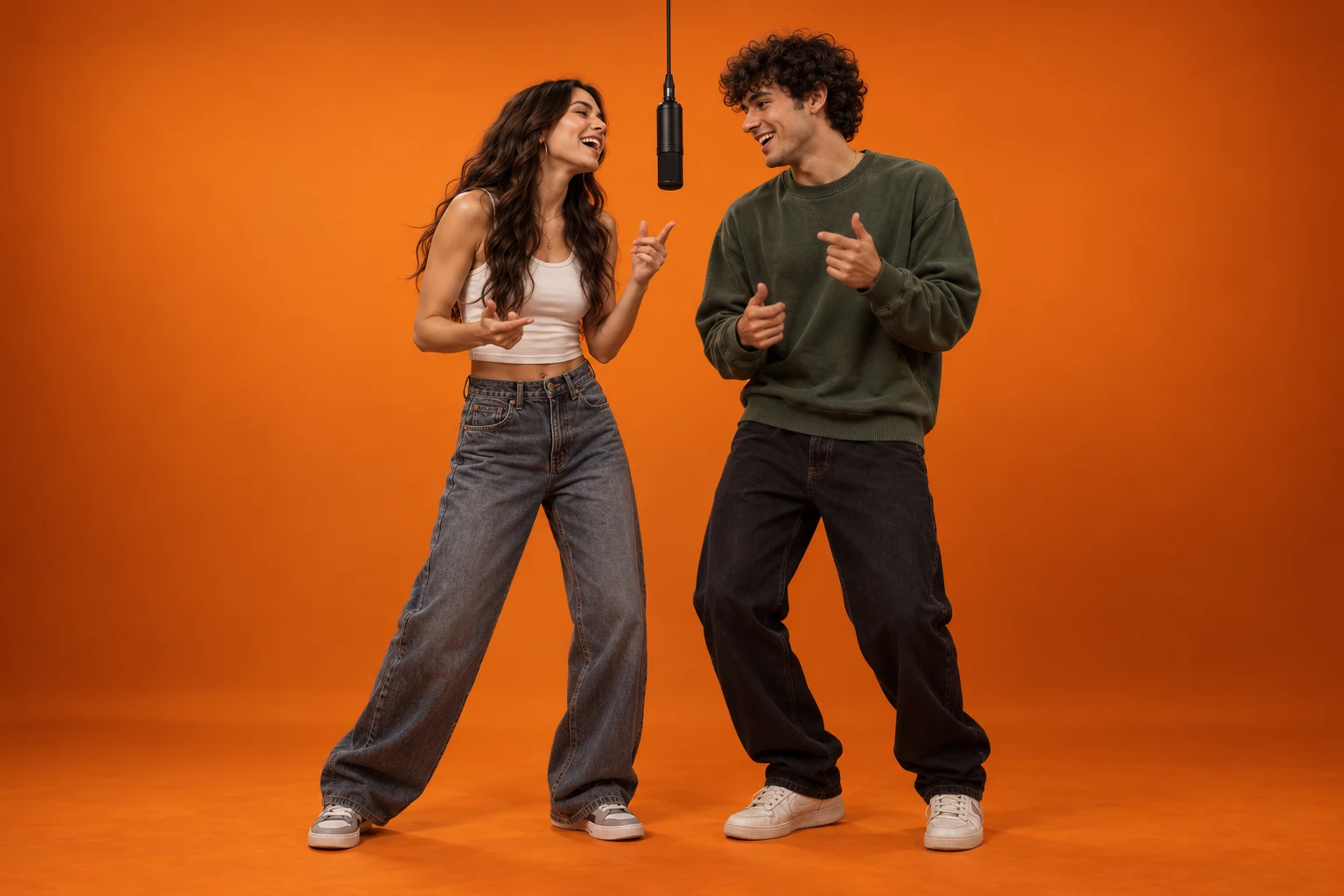
For a Quavo AI trend draft, place two subjects at similar distance from the camera with a hanging microphone between them. A balanced medium shot keeps both faces visible. For this Quavo trend, use original wardrobe and setting details in the AI brief. The composition is a useful planning cue, while the performance should remain your own.
Use this workflow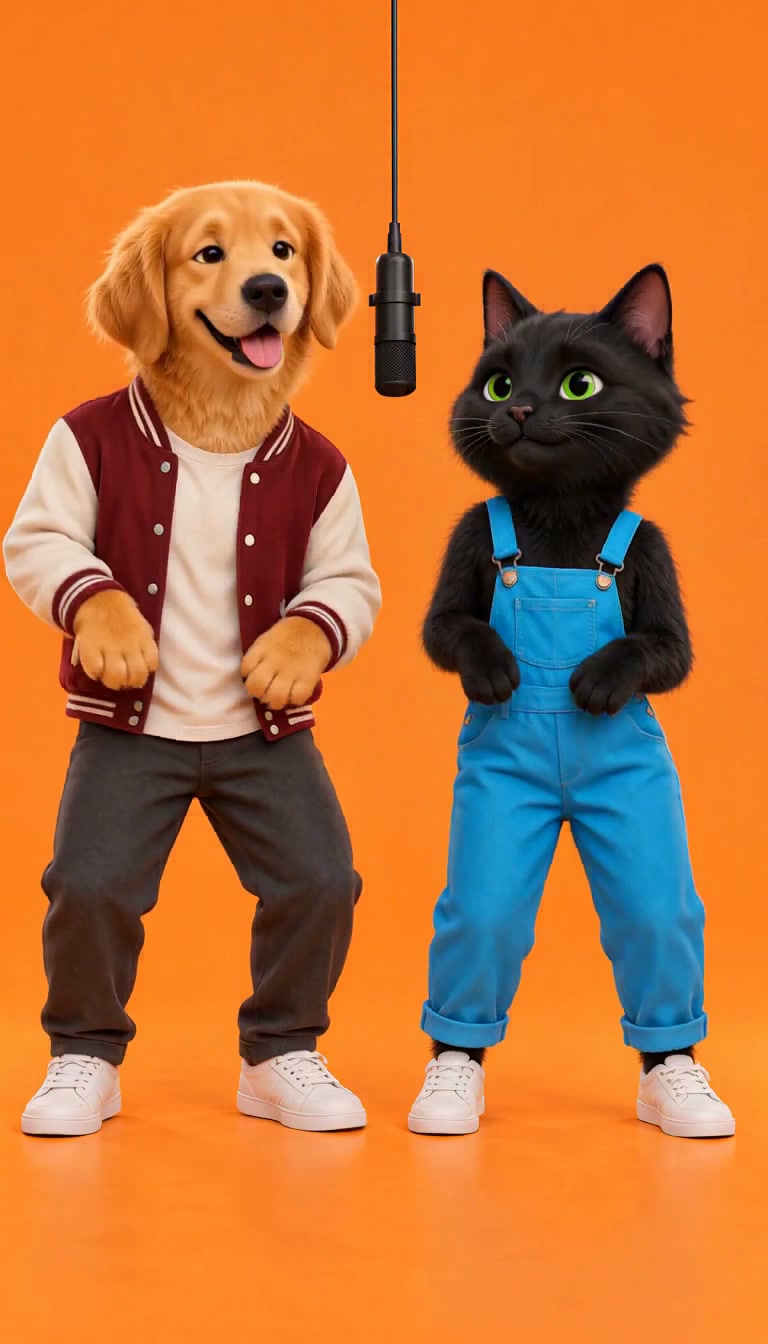
A Quavo trend portrait workflow needs an explicit left and right reference assignment. Choose permitted photos whose angles and lighting are compatible. Ask for stable faces and natural spacing, then inspect the whole result for identity swapping or merged hands. Play the entire AI draft: a convincing poster cannot establish consistent Quavo trend movement.
Use this workflow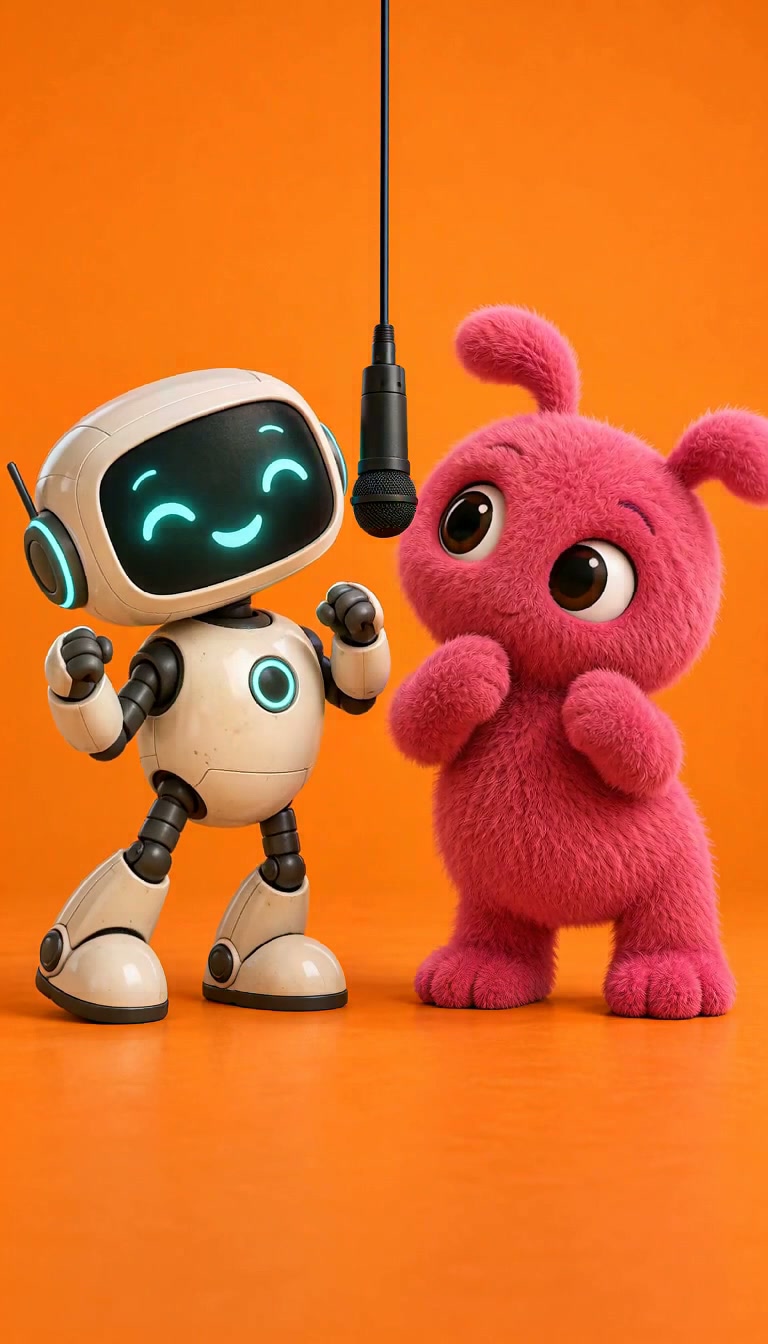
Start an AI duo draft for the Quavo trend with one small gesture and a friendly glance. Larger hand actions near the center microphone can cause overlap in short AI clips. The Quavo creator shows the supported AI model and quote for this trend. For controlled Quavo trend motion, use a permitted AI reference and the supported motion route.
Use this workflowReview the Quavo trend version for stable anatomy, microphone position and comfortable subject spacing. Download the approved visual draft, then add licensed sound in your editor. Clearly describe it as synthetic when the presentation could be mistaken for an actual event. Keep Quavo trend source images and AI settings with the export for later identity revisions.
Use this workflow| Choice | Useful starting point | Reason |
|---|---|---|
| Quavo scene framing | Balanced AI medium shot | Both trend faces remain visible |
| Spacing | Similar standing distance | Avoid overlapping silhouettes |
| Quavo scene microphone | Suspended at the center | Clear AI trend anchor |
| Gesture | Small rhythmic movement | Easier anatomy review |
Upload clear permitted portraits or a complete scene; keep faces visible, remove overlays. For fictional scenes, select a text preset.
Apply your preset. Review model, mode, duration, quote and balance. MiniMax H3 starter credits fund H3 only; general credits cover other supported models.
Inspect identity, anatomy, movement, camera drift. Revise an instruction responsible for visible errors before download.
Download your reviewed video. Add licensed sound or captions, label synthetic performances, keep source files with generation settings for revisions.
Choose a subscription for regular creation, or a one-time credit pack below. Compare credit quotes by model, duration, resolution and audio. Check out securely with PayPal; monthly plans issue credits each billing period and annual plans release credits monthly.
MiniMax H3 · Member benefit
Every paid plan includes MiniMax H3 credits. A 5-second 768P video uses just 5 credits; a 5-second 2K video uses just 10.
768P
1
credit / sec
2K
2
credits / sec
These rates apply to MiniMax H3 credits, issued monthly on both monthly and annual plans.
Annual credits release monthly.
Monthly creation credits
400 general + 150 MiniMax H3
Monthly creation credits
1,200 general + 300 MiniMax H3
Monthly creation credits
2,800 general + 600 MiniMax H3
One-time general credits for all available models. Credits never expire, with no auto-renewal. Subscription benefits and gifted MiniMax H3 credits are not included.
US$7.99
One-time payment
US$21.99
One-time payment
US$44.99
One-time payment
Billed in USD; credits arrive after payment confirmation. Expiring general credits are used first. Failed tasks return eligible credits to their original balance.
Keep creating with tools that fit your source material.
Made something with Vidloop? Tell other creators how it went and what you would change.
Be the first to share your experience. There are no published creator reviews for this page yet.
We review feedback before publishing and use only the public name you choose. For help with a task or billing, contact support.
Inputs, actual capabilities and your next draft.
No. It provides original visual workflows and does not supply a celebrity voice model, song or source performance.
Use separate permitted portraits when each person needs an independent identity reference. Use Image to Video when a complete original scene already contains the desired subjects and composition.
Local planning tools are free. Generation uses the displayed model quote. MiniMax H3 starter credits fund H3 only. Compare official subscriptions and credit packs below.
Confirmed failed generations return reserved credits. A delay alone does not confirm failure. Keep the task reference and contact support if its status remains unresolved.
Use permitted photos and licensed sound. Public availability does not grant reuse rights. Label AI performances that could be mistaken for real events.
These are original VidLoop examples with actual model, input and prompt records. Code renders are labeled separately. No competitor affiliation or integration is implied.
Choose the matching input, review a short draft and keep the original source and settings with your finished video.
Make your video